Facebook WhatsApp Configuration
Configure your Meta for Developers account to use the WhatsApp Cloud API.
To integrate WhatsApp with your Shopify store, you'll first need to set up an app via Facebook for Developers and generate the required API credentials. We've broken it down into simple steps:
Step-by-Step Setup
Log in to Facebook for Developers
Visit developers.facebook.com/apps and click the Create App button on the right.

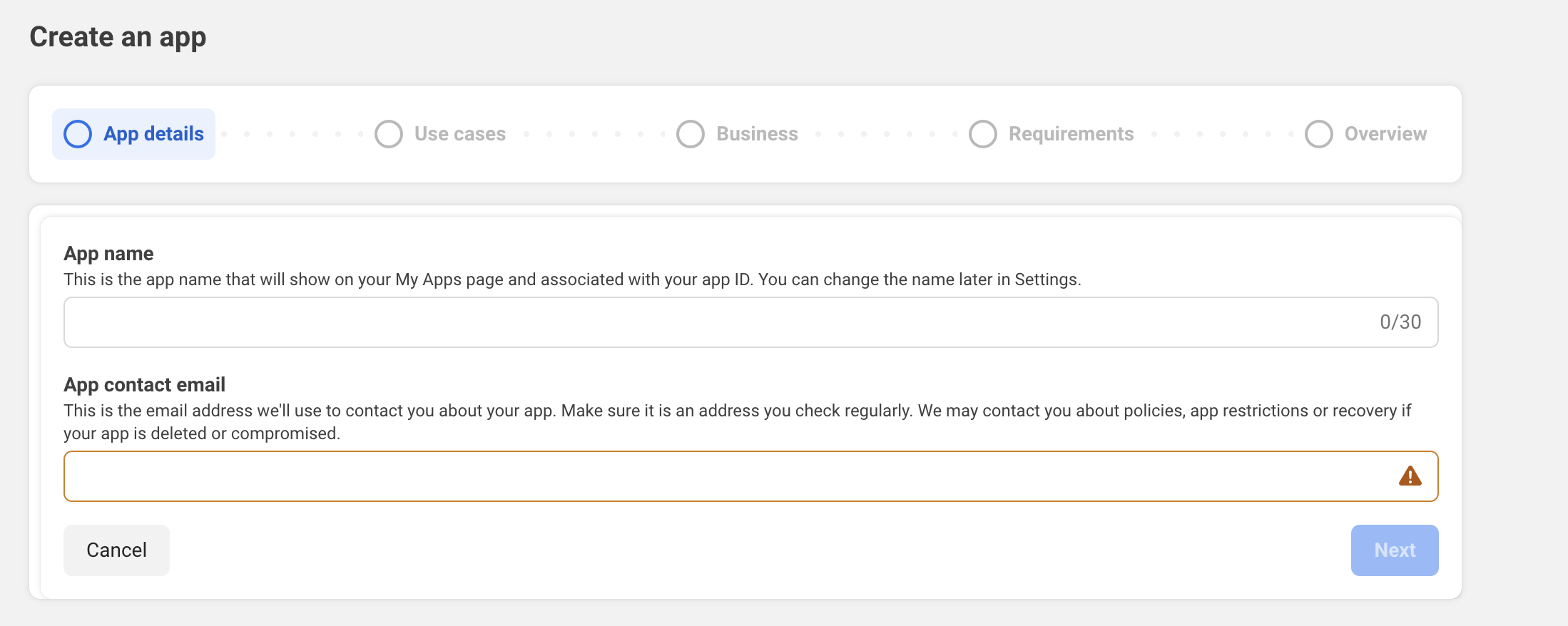
App Details
Enter your App Name and Contact Email (for admin purposes).
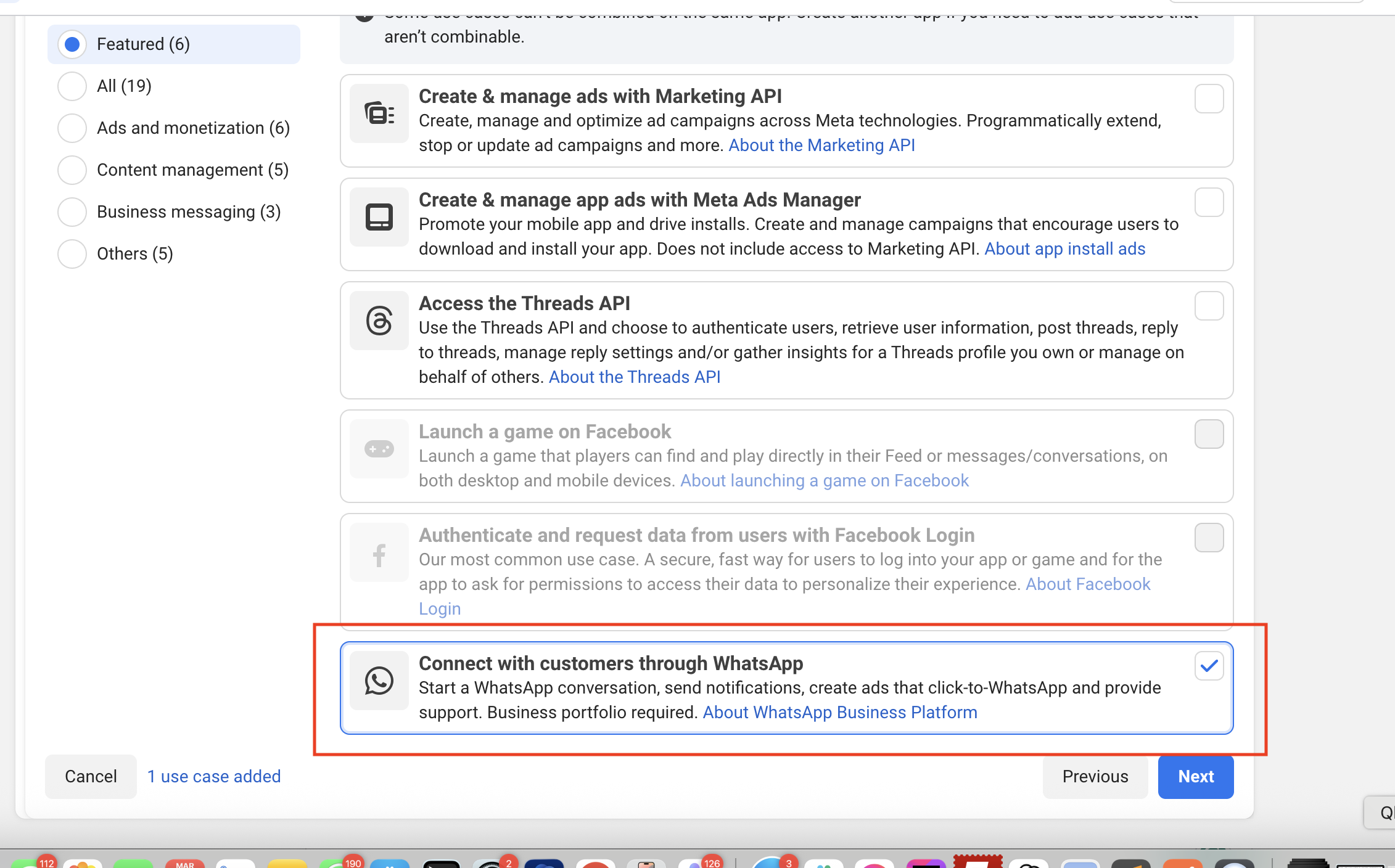
Choose App Type
In the modal that appears, select Connect with customers through WhatsApp and click Next.
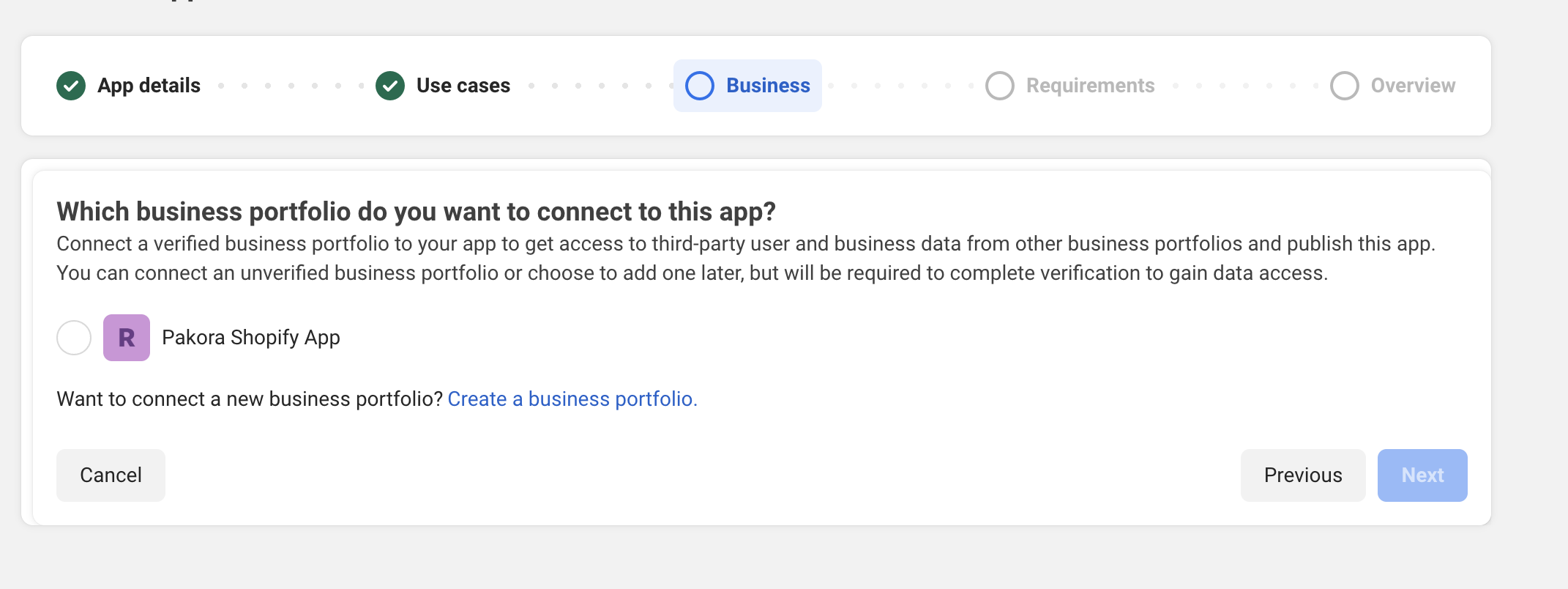
Choose Business Portfolio
Select any Business Portfolio from the list. If you don't have one, click Create New to set up a new Business Portfolio.
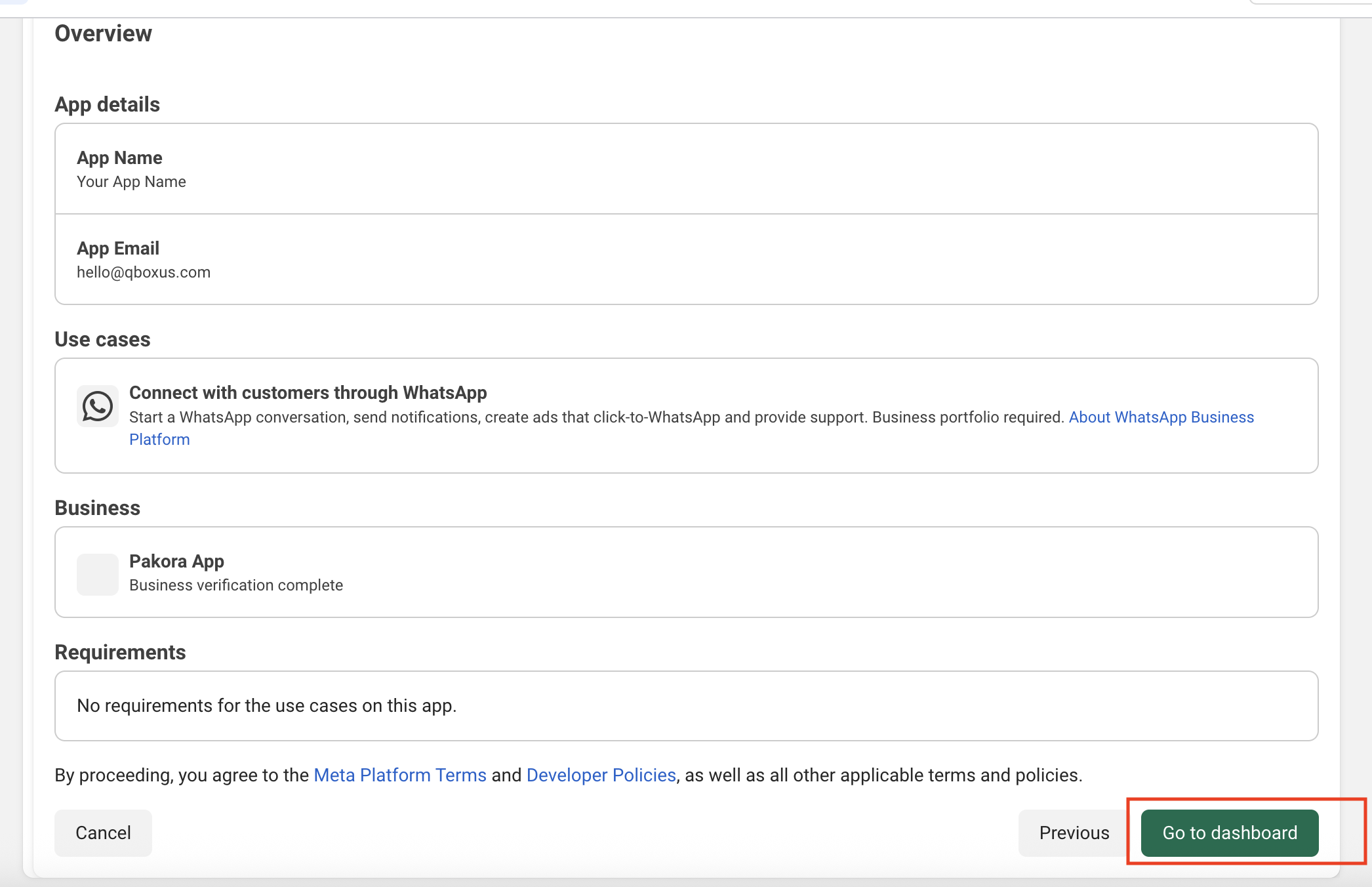
Review Details & Go to Dashboard
On the Overview page, check all the details and click Go to Dashboard. Facebook may ask you to re-enter your password for security.
WhatsApp Use Case
From the Dashboard, locate and click the Connect Customers Through WhatsApp option to continue the setup process.
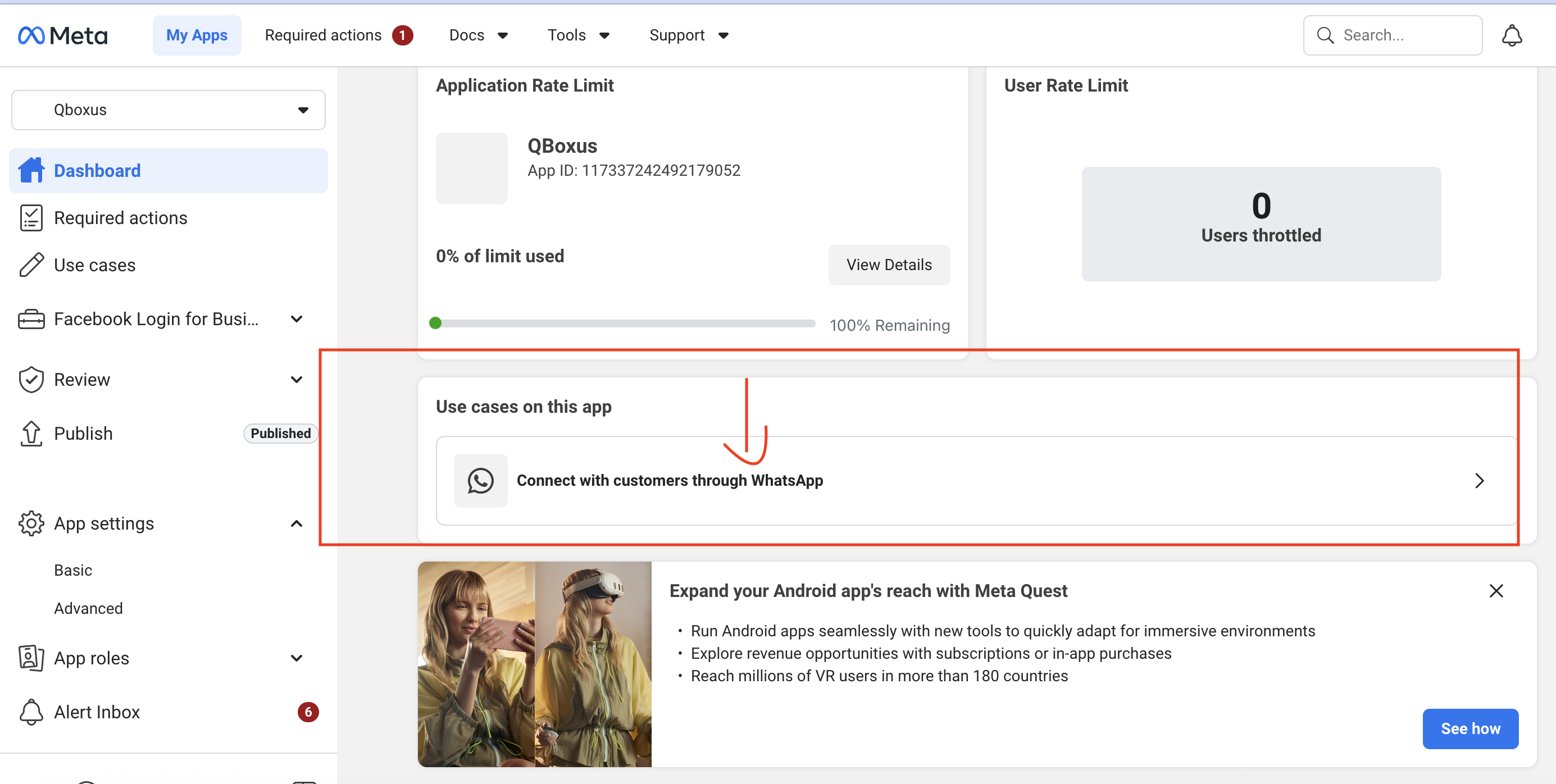
WhatsApp Manager
Click WhatsApp Manager to open your WhatsApp Manager account, then click to create your new WhatsApp Business Account.
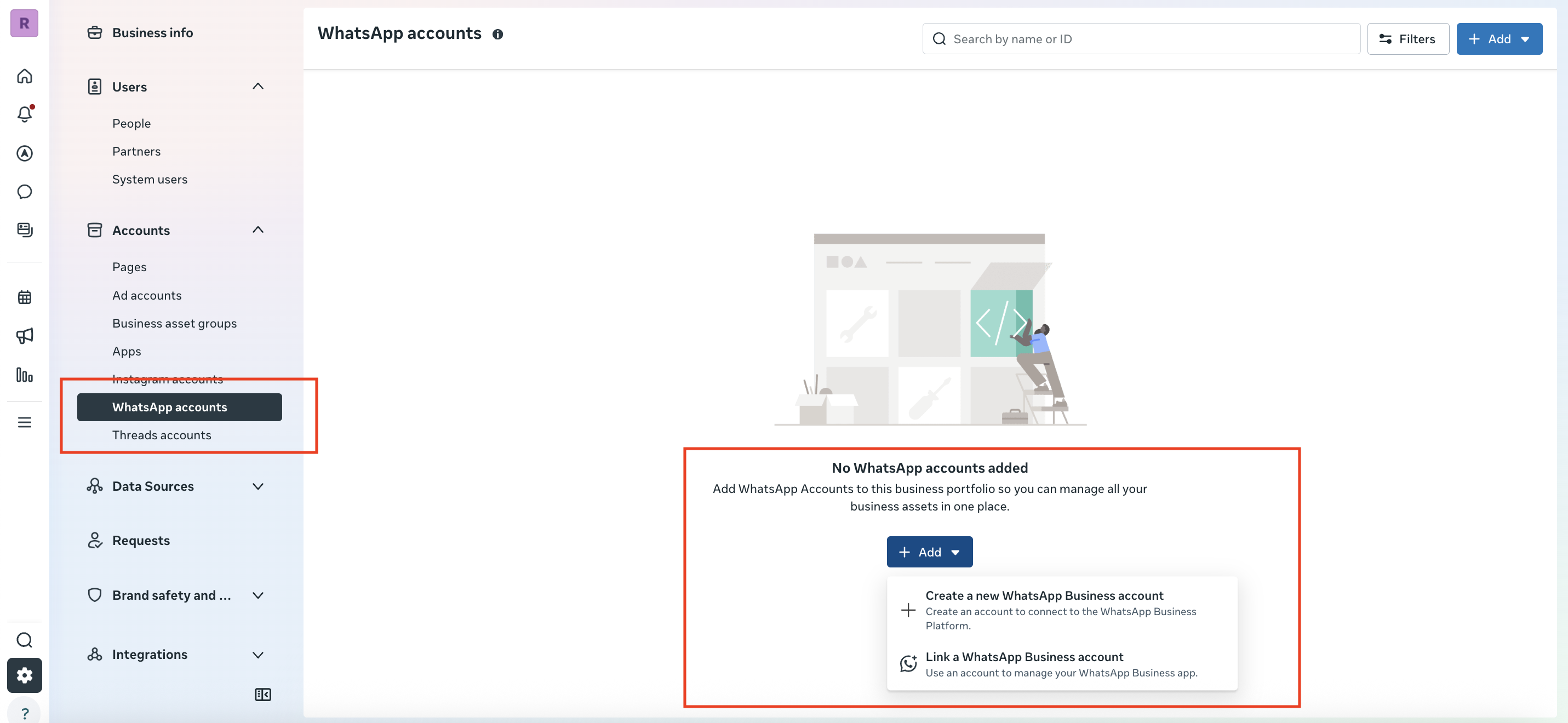
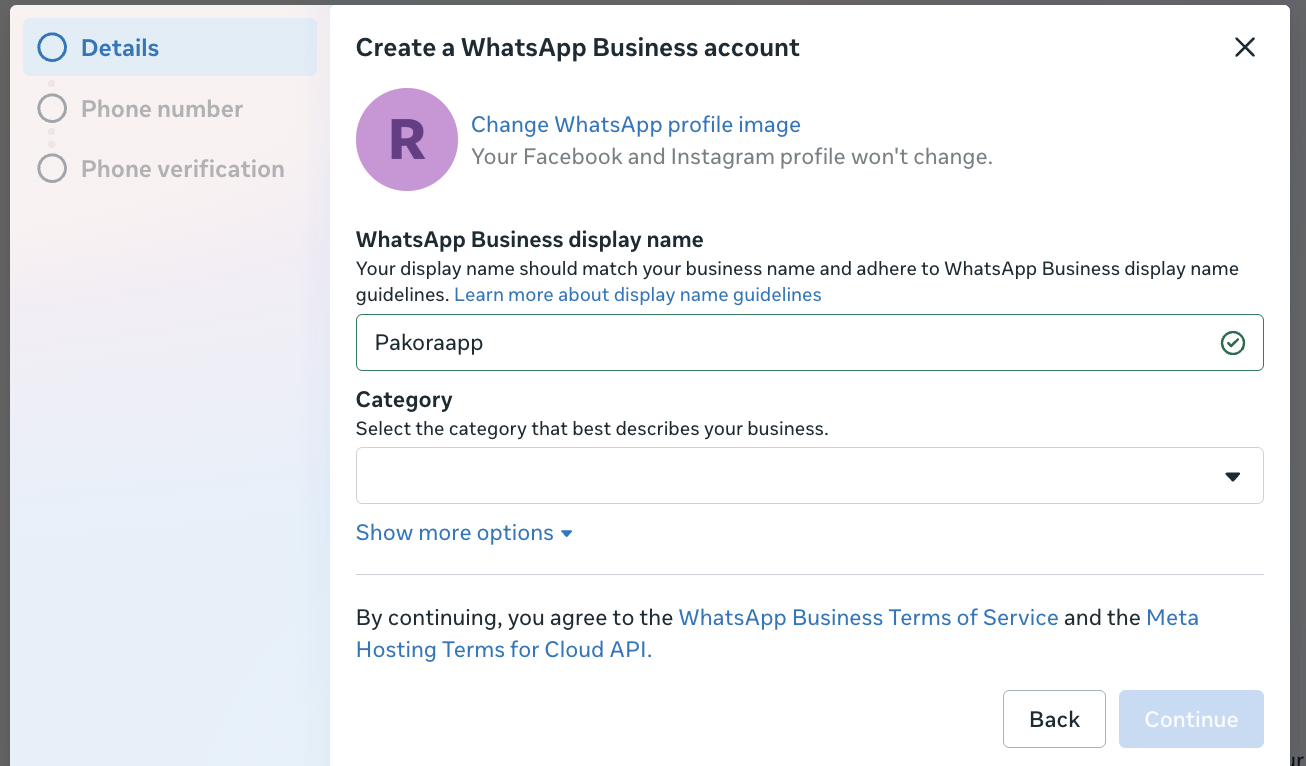
Create a New Business Account
Make sure the display name matches your registered business name, Facebook Page name, or website name — this helps ensure faster approval from WhatsApp. Click Next to proceed with phone verification.
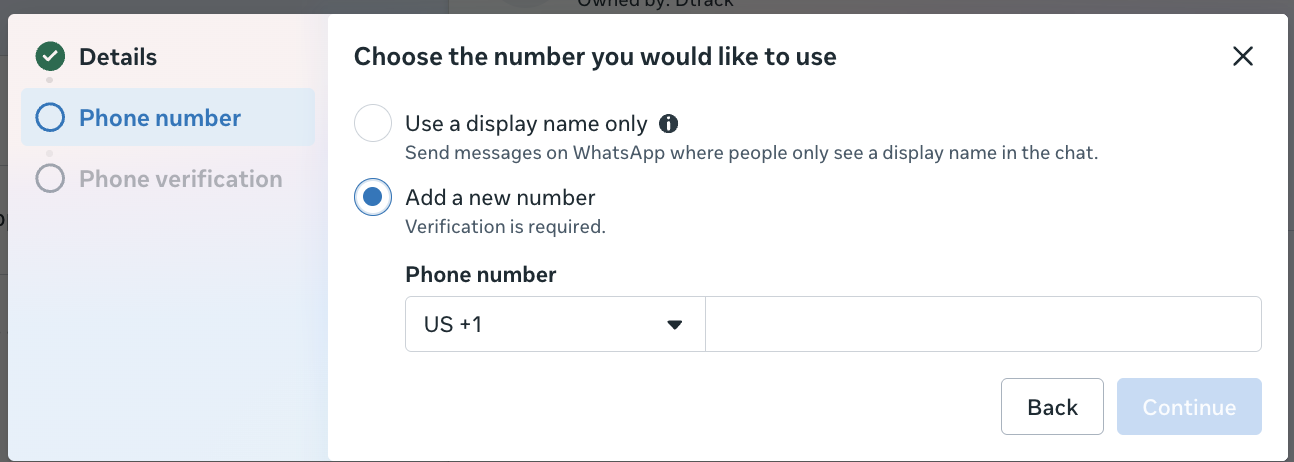
Phone Number Verification
Enter the phone number you want to use to send messages to customers and complete the verification process.
Retrieve Your API Credentials
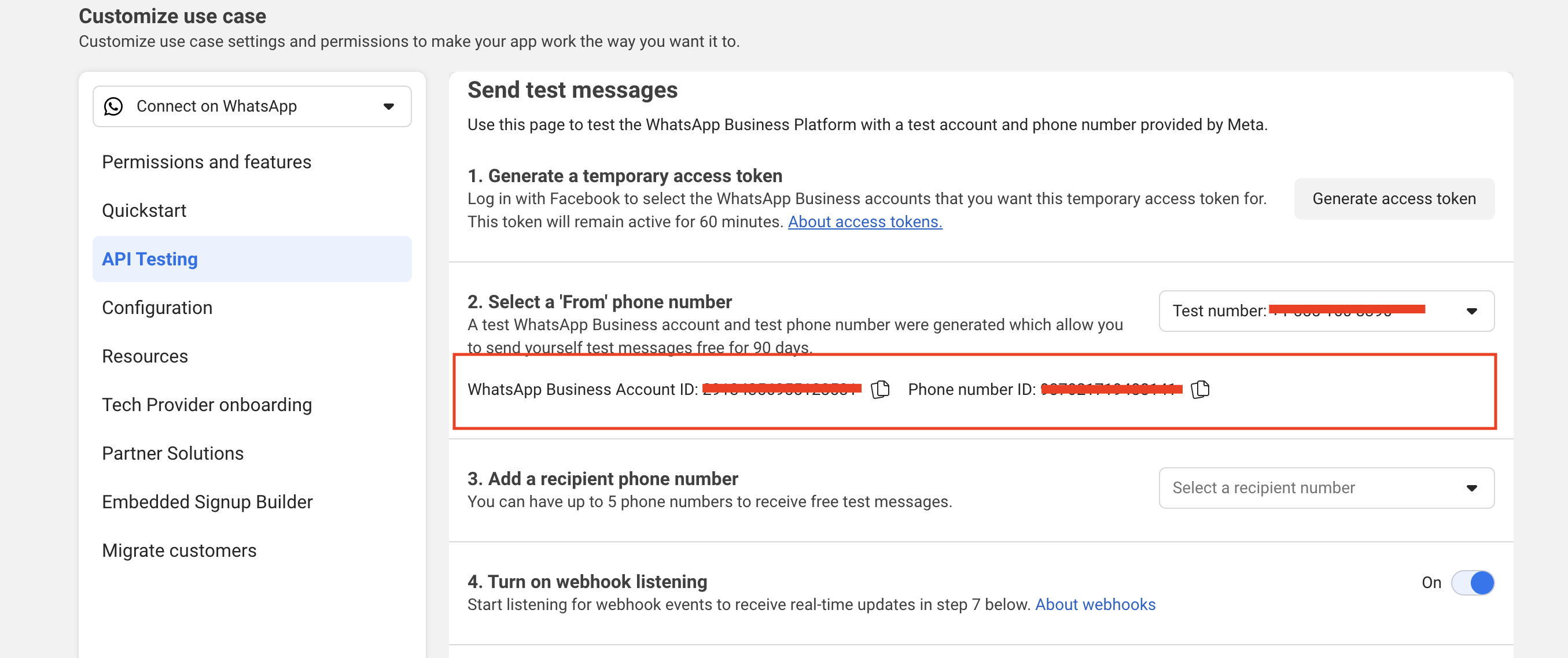
After successful setup, copy your WhatsApp Business Account ID and Phone Number ID from the dashboard.
Generate a Permanent Access Token
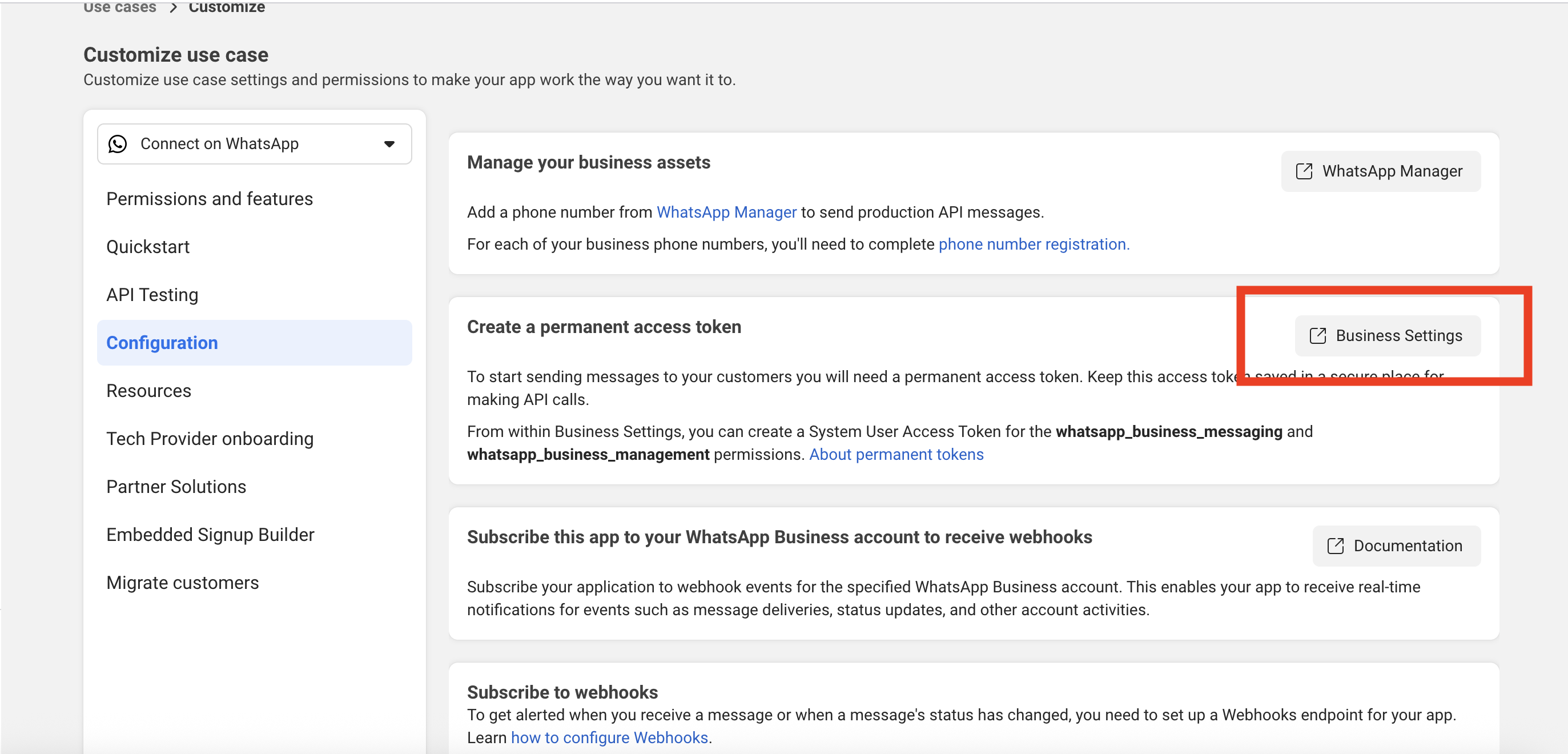
To generate a permanent access token, you must first create a System User. Click on Business Settings to begin. See the full guide: Generate a Permanent Token →
Was this page helpful?