Generate a Permanent Access Token
Create a never-expiring token so your WhatsApp integration stays active 24/7 without manual renewals.
Why you need this: Temporary tokens expire after 23 hours. Permanent tokens ensure your WhatsApp integration stays active without manual renewals — essential for running Pakora around the clock.
Step-by-Step Guide
1
Create a System User
System users act as admin bots that generate never-expiring tokens for automated systems like Pakora.
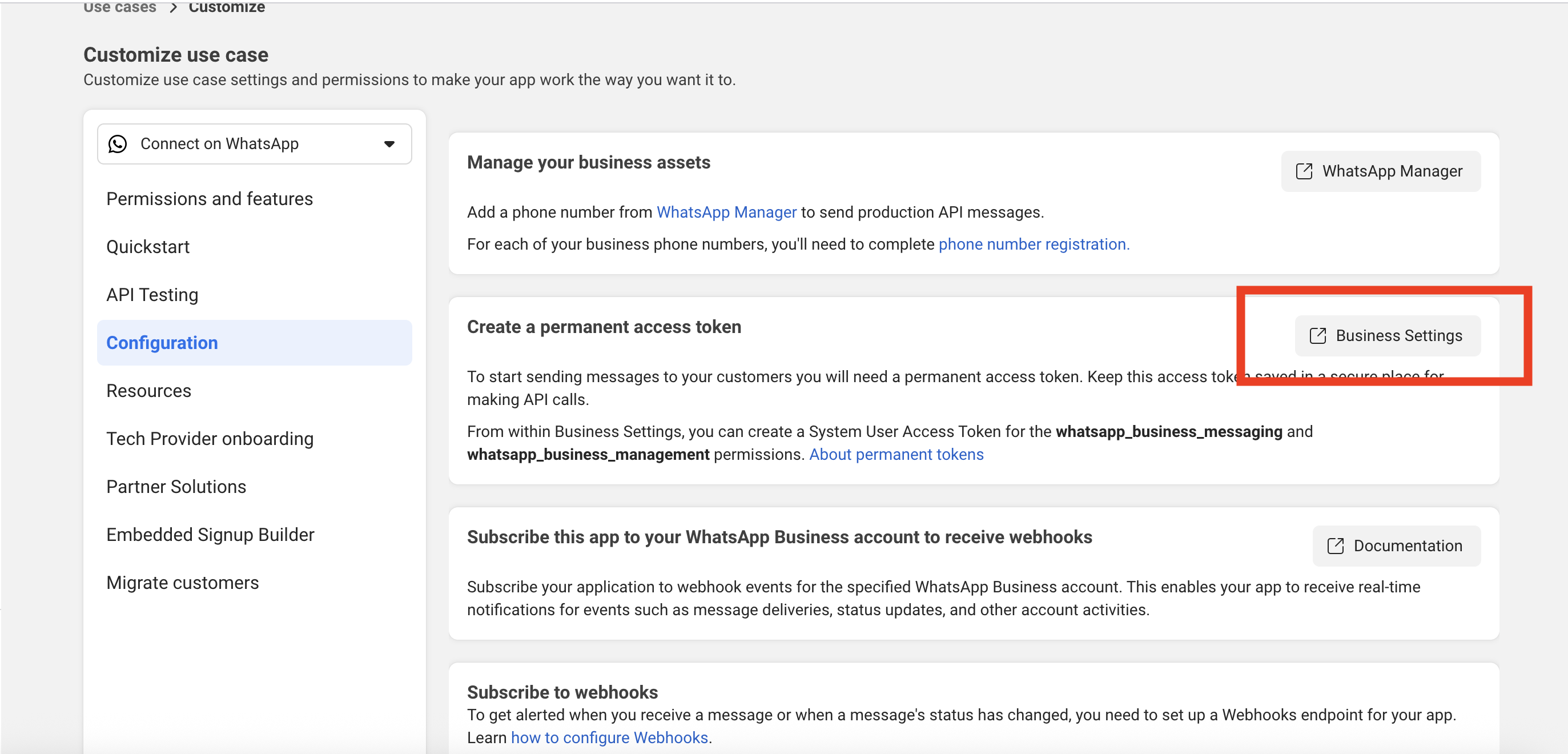
- Visit Meta Business Settings
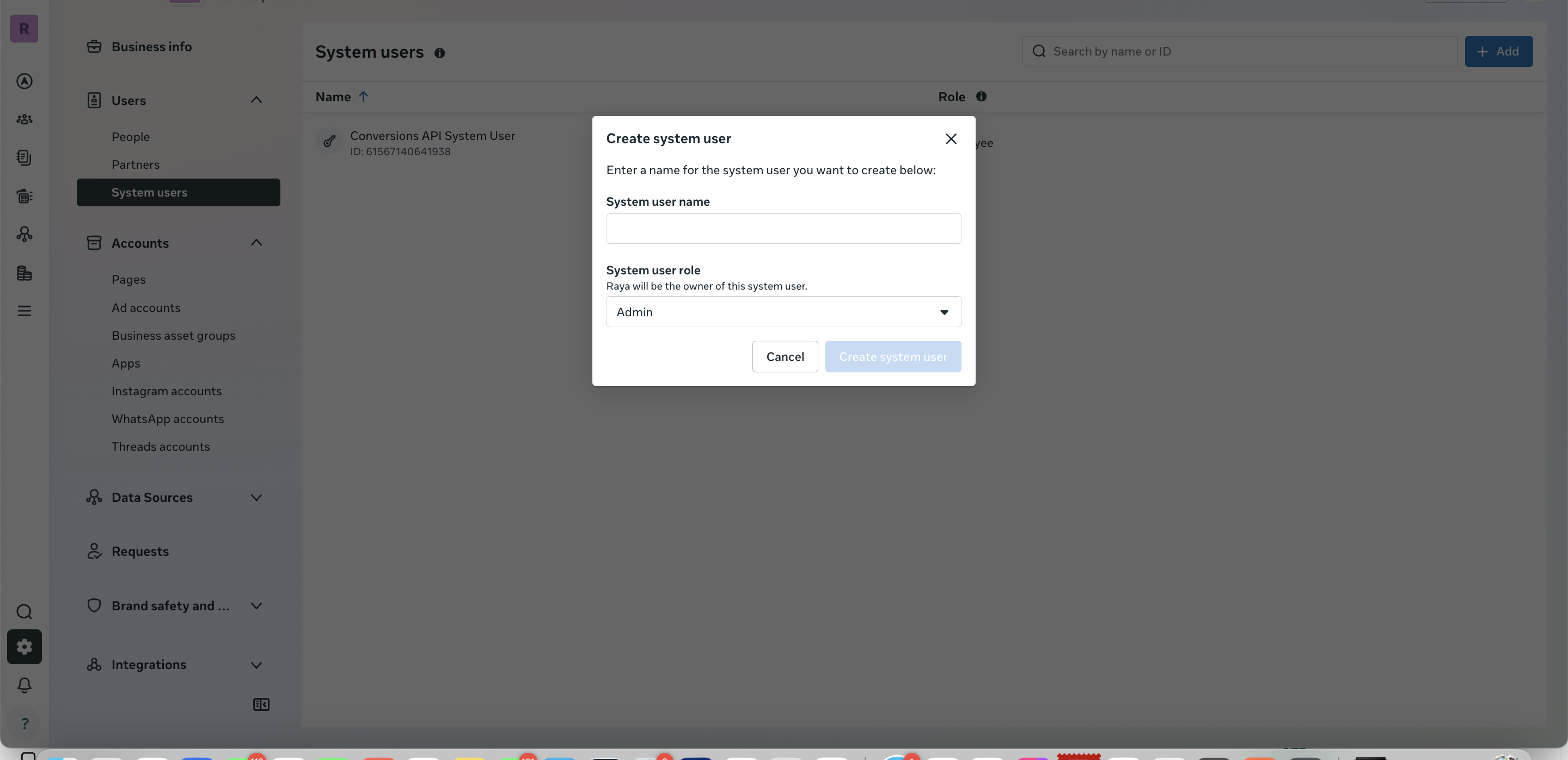
- Navigate to Users → System Users
- Click Add, enter a name, and set role to Admin
2
Assign Assets to System User
Grant your system user full control over your WhatsApp app.
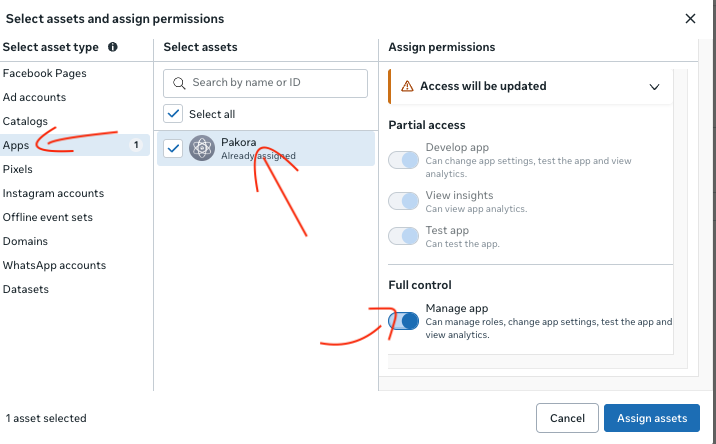
- On the System Users page, click Add Assets
- Select the Apps tab and choose your Meta App
- Enable Full Control and save

3
Generate the Token
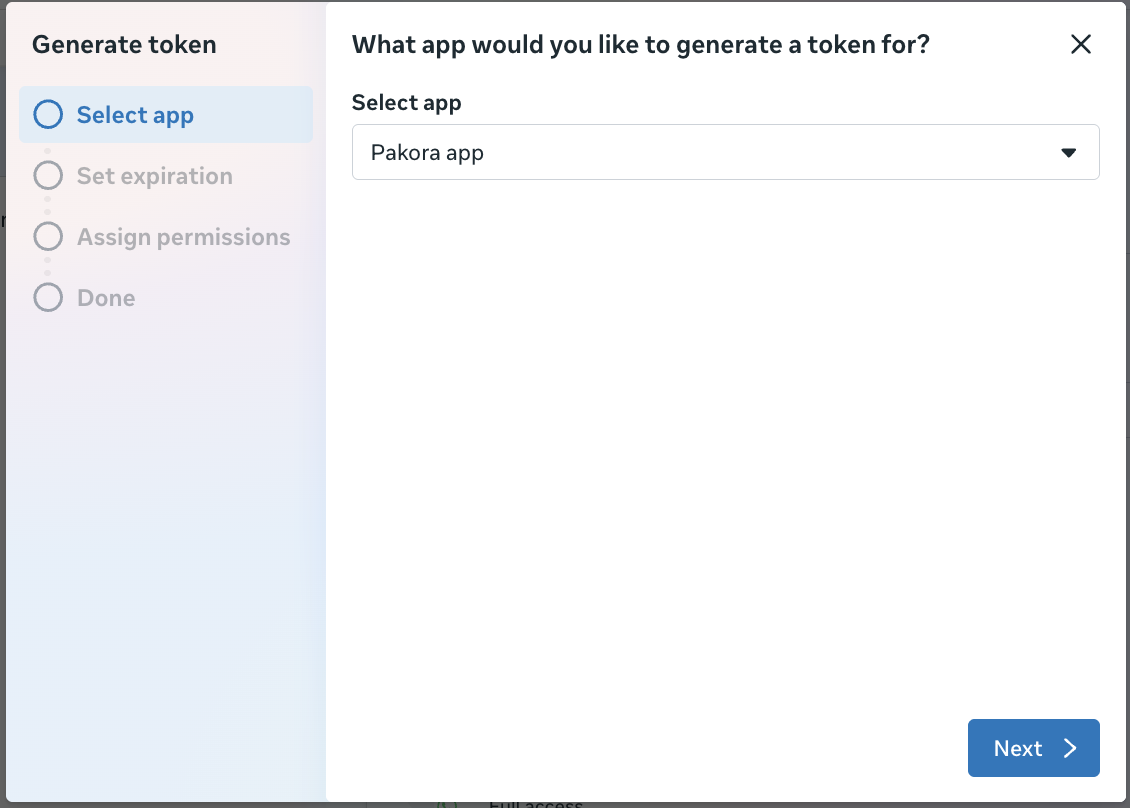
Click Generate Token and configure the following:
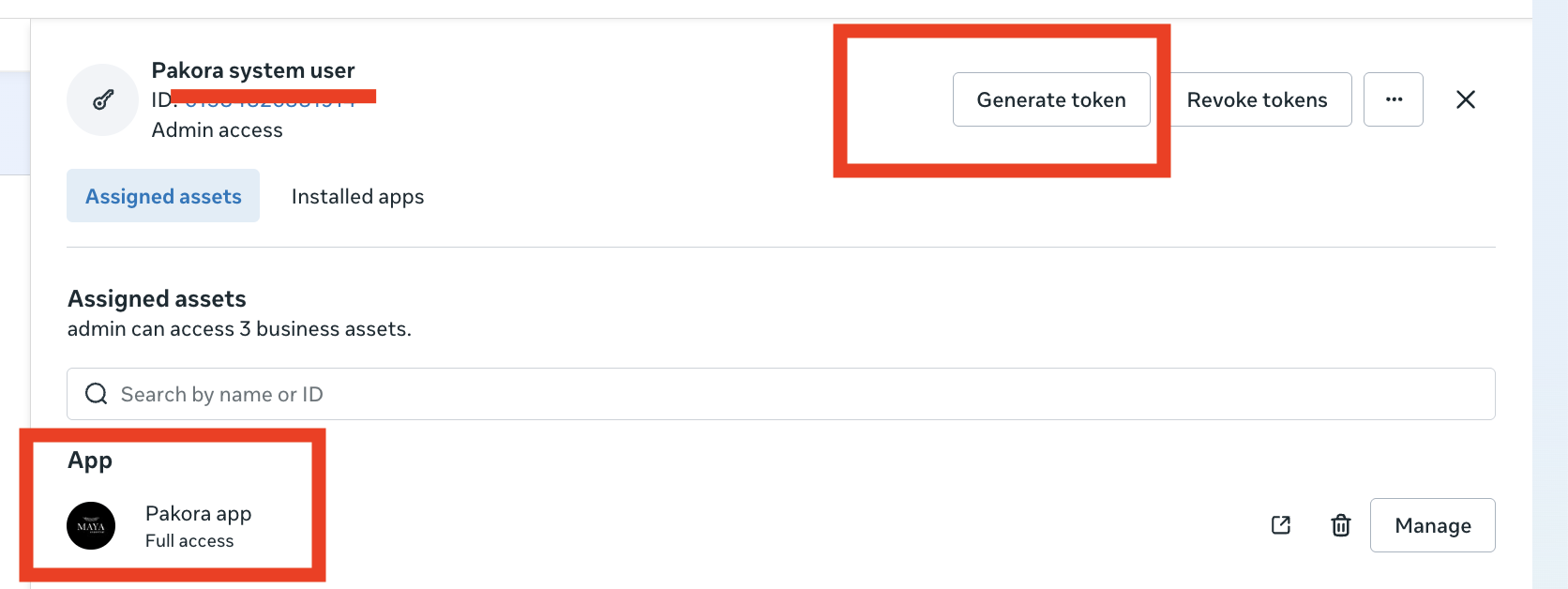
A. Select Your App
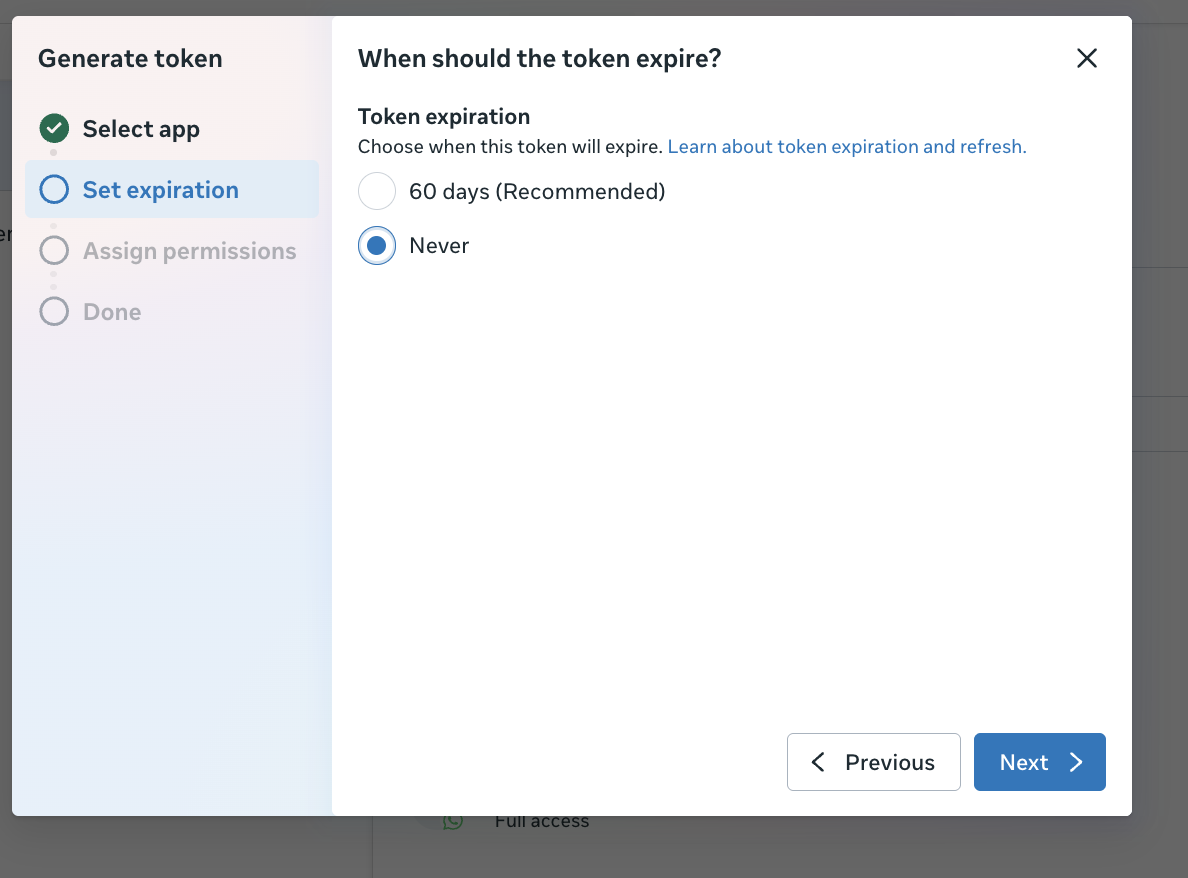
B. Set Token Expiry
Choose Never for a permanent token, or 60 days if you prefer rotation.
C. Grant Required Permissions
✅ whatsapp_business_messaging
✅ whatsapp_business_management
✅ catalog_management
✅ business_management
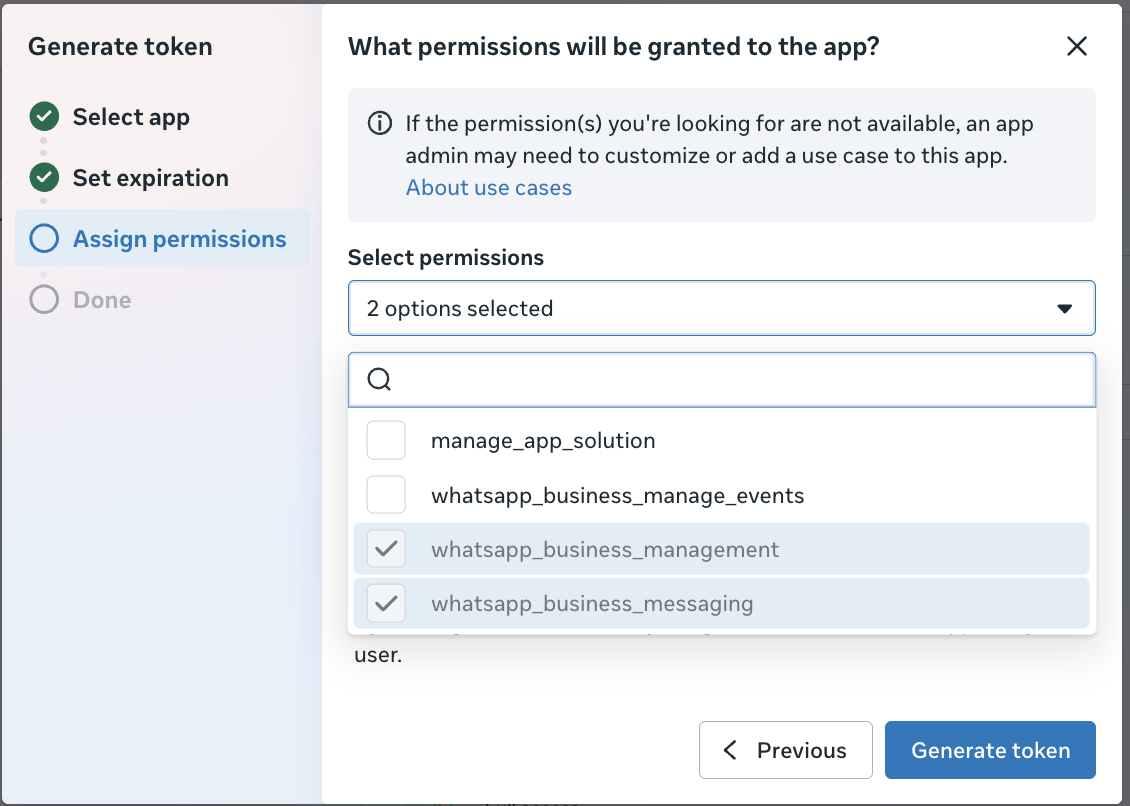
Important: The token displays only once. Copy it immediately and store it securely. If lost, you'll need to generate a new one.
Enter Credentials in Pakora
Navigate to Pakora → General Settings and enter:
✓ WhatsApp Business Account ID
✓ Phone Number ID
✓ Permanent Access Token
✓ Phone Number ID
✓ Permanent Access Token
Was this page helpful?