Receive Message Settings
Configure your webhook to receive messages and establish a secure connection with Meta.
1. Retrieve Your App ID and App Secret
- Go to the Facebook Developer Dashboard
- Select your app from the list
- Navigate to App Settings → Basic
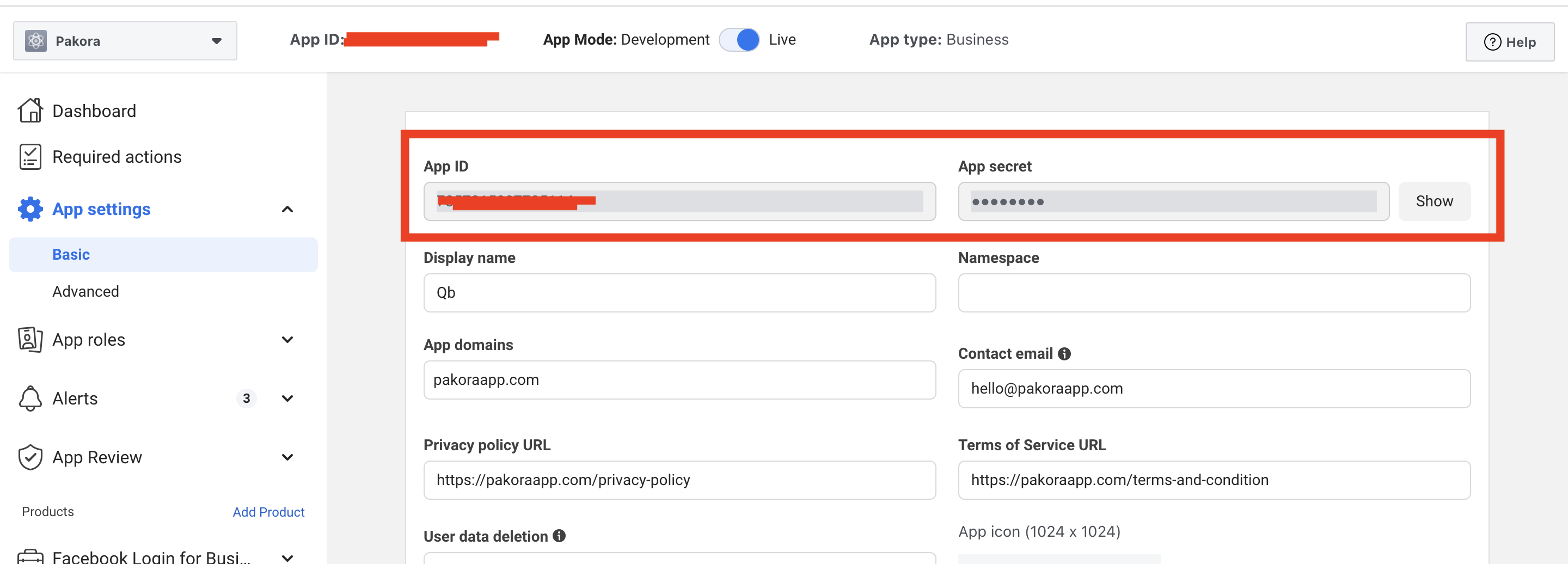
Figure: Location of App ID and App Secret in Facebook Developer Dashboard
- Copy your App ID and App Secret
- Paste these credentials into Pakora App to complete the connection
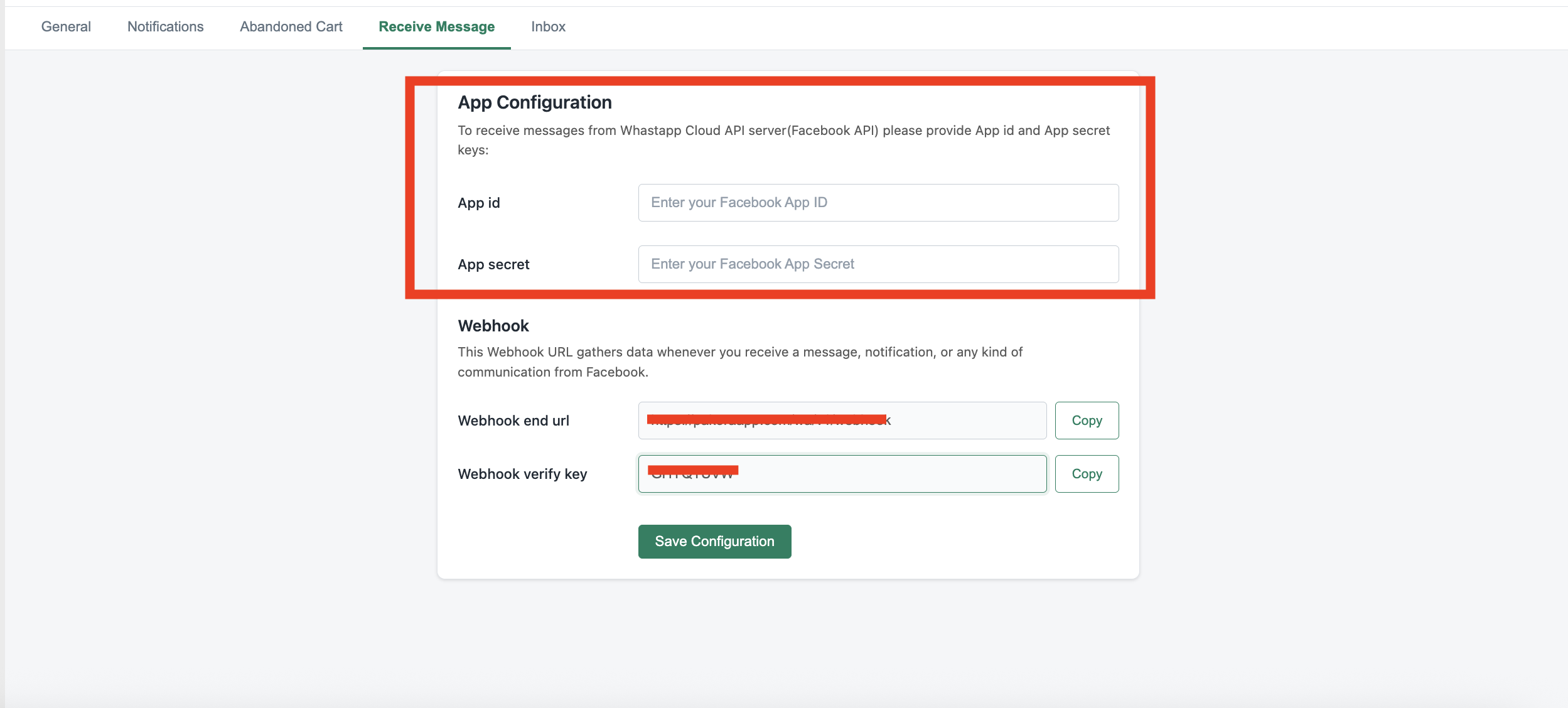
Figure: Location of App ID and App Secret in Shopify Pakora App
2. Webhook Setup
Pakora auto-generates your Webhook Callback URL and Verification Token. Copy these from your Pakora dashboard:
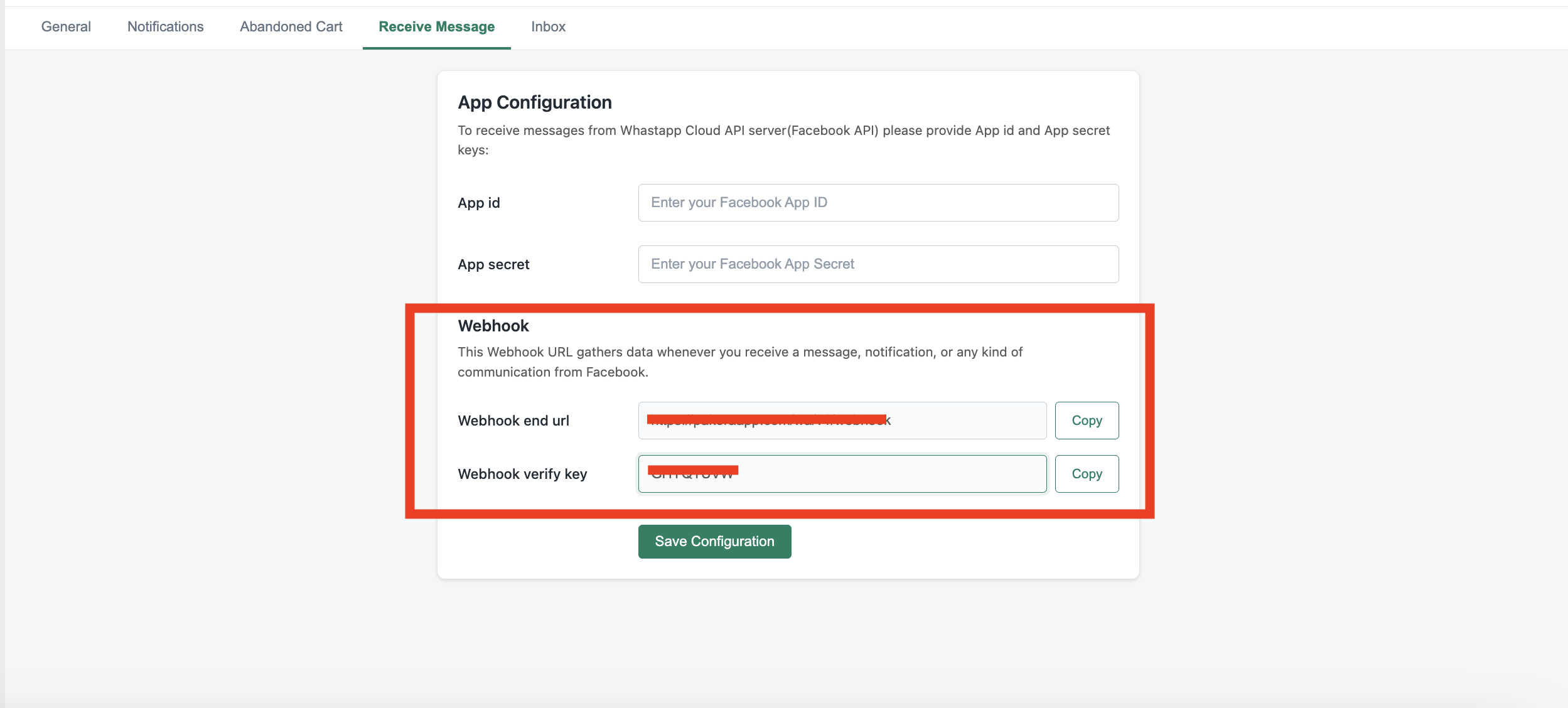
Figure: Copy Webhook URL and Verify Token from Shopify Pakora Dashboard
In your Facebook Developer Console:
- Go to WhatsApp → Configuration
- Click Edit, paste the Webhook URL and Verify Token
- Click Verify and Save
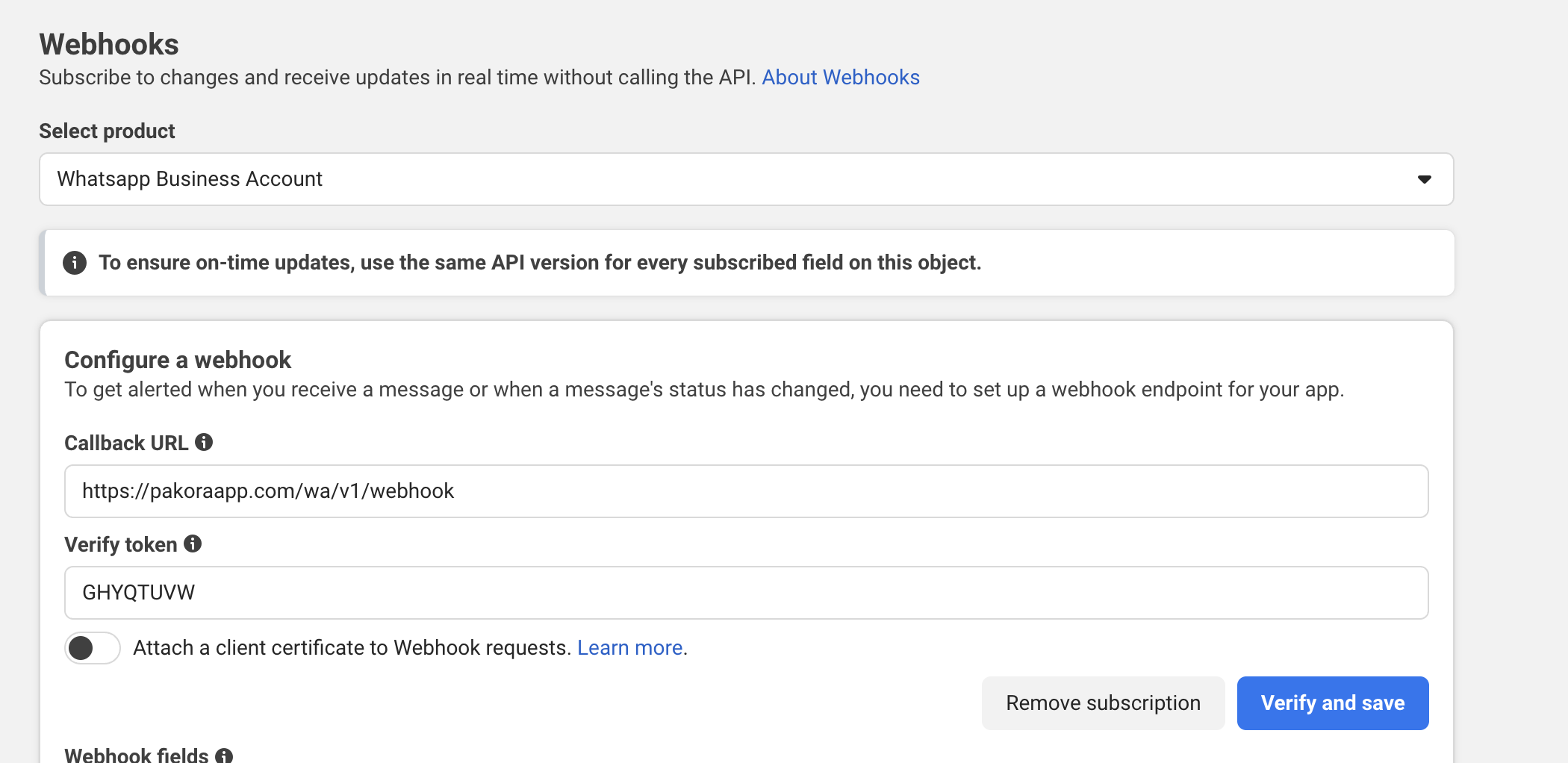
Figure: Paste Webhook URL and Verify Token in Facebook Developer Console
3. Subscribe to Message Events
After verifying your webhook, subscribe to the events you want to receive. At minimum, enable messages to receive incoming customer messages:
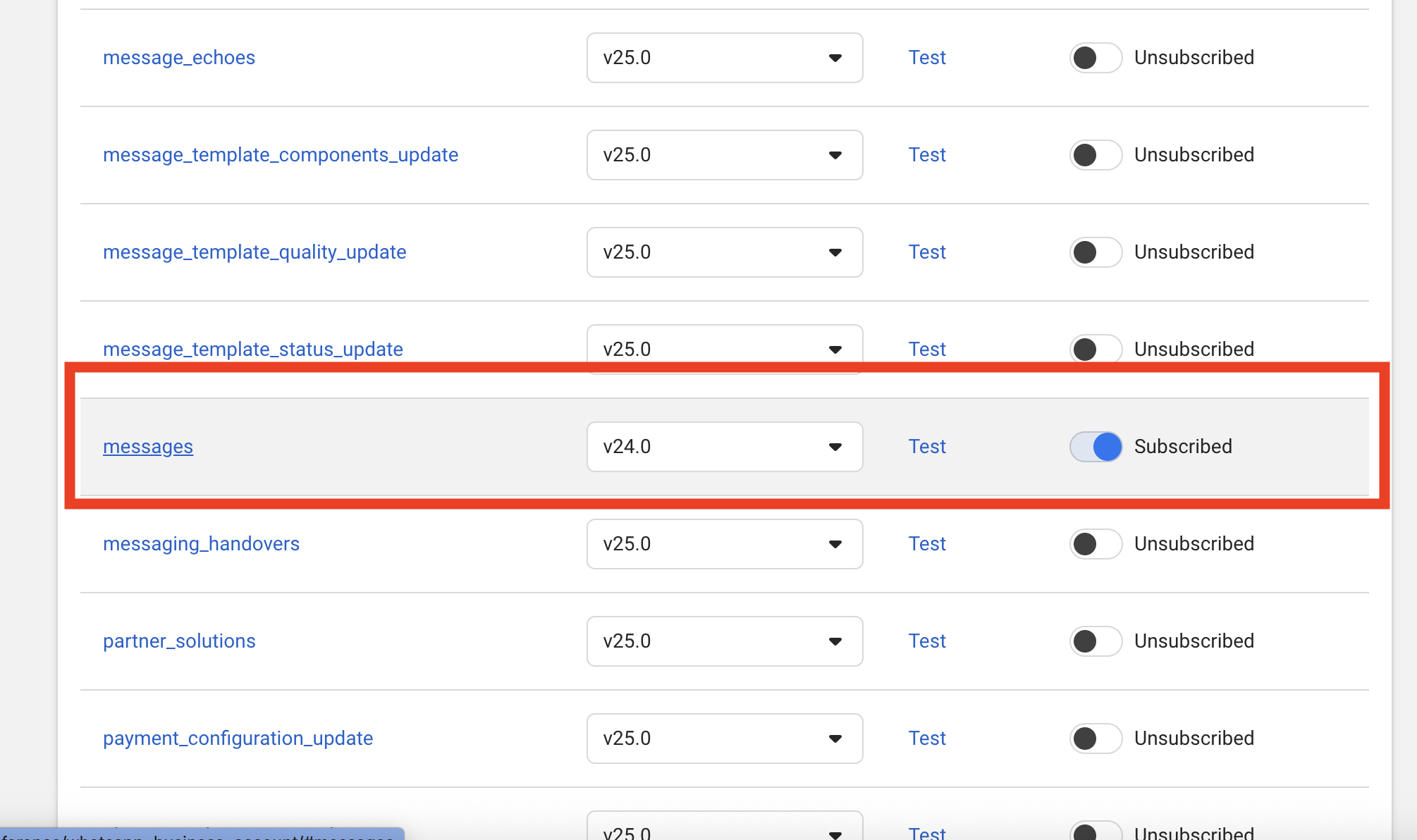
Figure: Subscribe to "messages" events to receive customer messages
messages — Receive incoming text messages from customers
🛡️ App Secret Key
Acts like your password — ensures only Facebook can send messages to your webhook, keeping your integration secure and preventing spoofed data.
🔗 Webhook URL
Creates a real-time bridge between Facebook and your site, enabling instant message delivery. Pakora auto-generates this for you.
24-Hour Customer Service Window
✅ Within 24 Hours
- ✓ Answer questions freely
- ✓ Send order updates
- ✓ Share product details
- ✓ Continue conversation normally
🔒 After 24 Hours
You cannot send regular messages unless:
- • Customer messages you again (reopens window)
- • Use approved message templates only
Was this page helpful?